
Keeper Password Manager
Keeper Security, Inc.Productivity
4.723.55K Reviews
- Version
- Varies With Device
- Installs
- 10.00M
- Age Rating
- Everyone
Screenshots
Our Review of Keeper Password Manager
 Analysis by Appyee
Ever felt like you’re drowning in a sea of passwords? I get it. With every new app or website, there’s another password to remember. That’s where Keeper Password Manager swoops in like a superhero. I’ve been using it for a bit, and here’s the lowdown on how it can make your digital life a whole lot easier.
What the price does—and doesn’t—tell you
Keeper is a free productivity app from Keeper Security, Inc., and its audience rating is 4.7 out of 5 from around 109,000 ratings. The app has passed 10 million installs, which suggests it has found a broad audience, but popularity alone doesn’t tell me whether it suits your routine. The age rating is Everyone, so the basics are intended for a general audience.
There is an important distinction between free access and long-term value: in-app purchases range from $9.99 to $239.99 per item. That range is broad, so I would check exactly what a particular purchase includes before paying rather than assuming every feature described in the app is part of a free plan. The free price makes it reasonable to explore, but it does not mean every capability is free or that a paid tier is automatically worthwhile.
For someone deciding whether to spend, I’d start with one practical question: do you need a dependable place to organize logins, or are you specifically looking for extras such as file storage, monitoring, or access planning? If you only want to stop reusing a few passwords, a built-in password manager may already do enough. If you have a larger collection and want those different kinds of records in one place, Keeper’s broader toolkit may make a paid option more compelling—provided the purchase details match what you need.
Why Keeper Stands Out
First off, let’s talk about security. With all the cyber shenanigans happening these days, a reliable password manager is non-negotiable. Keeper Password Manager takes security seriously. It uses military-grade encryption to keep your passwords locked up tight. So, if you’re like me and a bit paranoid about data breaches, this is reassuring.
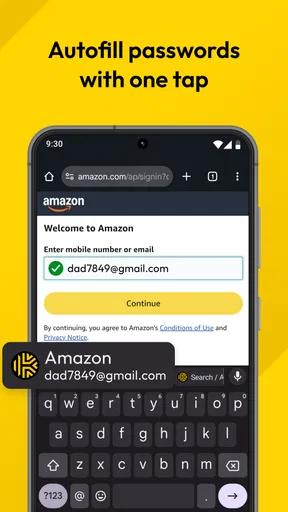
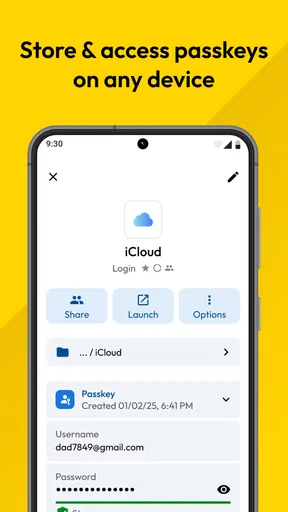
Once you’ve got Keeper installed, the setup is a breeze. You create a master password—make it strong and memorable because it’s the key to everything. Then, you start adding all those passwords you’ve scribbled on sticky notes or saved on your browser (shame on you!). Keeper’s autofill feature is a lifesaver, automatically filling in login details so you don’t have to.
Features Worth Bragging About
What makes Keeper shine are its features. Here are a few that caught my eye and made me think, "Why didn’t I start using this sooner?"
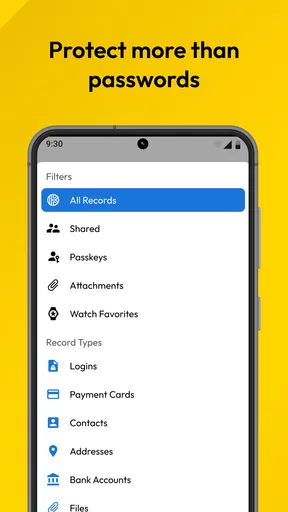
- Secure File Storage: Keeper isn’t just about passwords. You can also store files securely, which is perfect for those sensitive documents you don’t want floating around.
- Dark Web Monitoring: This feature scans the dark web to see if any of your credentials have been compromised. It’s like having a watchdog on the dark side of the internet.
- Emergency Access: You can designate someone to access your account in case of emergencies. It’s like a digital will, ensuring someone can manage your online presence if needed.
These aren’t just gimmicks; they add real value, making Keeper more than just a digital vault.
Putting the extras to practical use
The file vault is most useful when it solves a retrieval problem, not simply because it can hold documents. I’d reserve it for items I genuinely need to find alongside account details, such as a recovery document or a scan I might need while away from home. Before storing anything especially sensitive, I’d check what the chosen plan allows and think through who could reach it if I lost access to my account. A password manager can reduce scattered copies, but it also concentrates important information, so the master password and recovery arrangements deserve care.
Dark web monitoring is best treated as an alerting aid rather than a shield. If it flags a credential, the useful response is to change that password on the affected service, and then update the saved entry. If the same password was reused elsewhere, those accounts need attention too. That workflow is easy to overlook: a warning only helps when it leads to changes, and monitoring cannot make a compromised password safe by itself.
Emergency access is another feature that rewards a little planning. I would choose someone I trust, explain what the arrangement is for, and consider how it fits with my other account-recovery methods. It is not a substitute for keeping the master password secure, and it is worth making sure the designated person knows how to act if the need arises. Those steps turn a setting into a usable contingency rather than a forgotten option.
Moving in from a browser or another manager
If your passwords are currently saved in a browser, the biggest change is not typing them into a new app one by one; it is deciding which copy should become the source of truth. I’d move a manageable group first, then test sign-ins on the phone and on any other device I regularly use. Once Keeper reliably fills the right account, I’d avoid continuing to save new logins in several places, since parallel vaults can drift out of date and create confusion about which password is current.
Compared with a browser’s built-in password storage, a dedicated manager like Keeper can make more sense when you want a separate vault and extras such as secure file storage, monitoring, and emergency access. A built-in option may be simpler if your needs are limited to basic logins and you already rely on one device ecosystem. The trade-off is convenience versus breadth: the more capable setup can take more attention, and you should decide whether those extra tools solve real problems for you.
Day-to-Day Use
In daily use, Keeper is smooth and intuitive. On both Android and iOS, the app is responsive and user-friendly. The interface is clean, which I appreciate—no one likes clutter when they’re trying to manage their passwords.
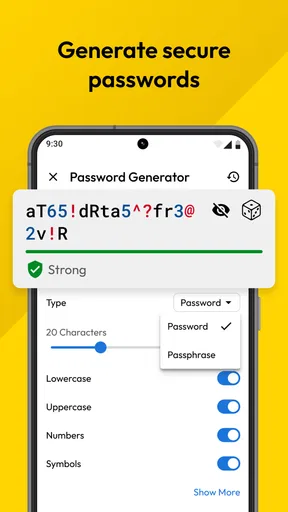
One thing I love is the password generator. When I’m registering for a new service, Keeper suggests complex passwords that would make even the savviest hacker sweat. Plus, it remembers them so I don’t have to.
A useful habit is to generate a distinct password at the moment you create an account, then save it straight away with a clear label. That avoids the common trap of accepting a strong generated password and later having no idea which login it belongs to. I’d also make a quick check that autofill selects the right account when a service has separate personal and work logins; convenience is only helpful when the correct credentials go into the correct place.
A realistic example is signing up for a delivery service while away from home. I can generate a fresh password, save it with the service name, and use autofill the next time I need to check an order. If I later get a monitoring alert about that login, I know where to find the entry and can update it without searching old notes or guessing which password I used. That small loop—create, save, retrieve, and update—is where a manager earns its keep.
The app also offers biometric login options, like fingerprint and face recognition, which makes accessing your vault quick and easy. In my opinion, this is a game-changer, especially when you’re in a rush.
Biometrics make frequent access less of a chore, but I would still treat the master password as essential rather than something I can forget. I’d make sure it is memorable without being easy to guess, and keep any recovery plan somewhere sensible. A password manager is a poor fit if you are unwilling to maintain that one important credential or to learn the basic steps for getting back into your vault.
Who gets the most value from it
I see the strongest case for Keeper if you manage many logins, regularly create accounts, or want passwords and selected files organized in one place. It can also suit people who share responsibility for a household’s digital arrangements, since emergency access gives them something to plan around. For a frequent traveler, having a well-organized vault on a phone can be more practical than relying on memory or scattered notes, especially when a login is needed away from a familiar computer.
It is less convincing if you have only a few accounts, rarely change passwords, and are already satisfied with a built-in manager. In that situation, the setup and ongoing organization may feel like extra work rather than relief. I would also skip a paid purchase until I had checked the exact item and confirmed that the added capability addresses a real need. The headline price range spans substantially different amounts, so a general impression of the app is not enough to judge a specific purchase.
Another trade-off is the single-vault model. Keeping credentials together makes them easier to find, but it also makes access to the vault important. I’d use a strong master password, enable a convenient biometric option if it suits my device, and think ahead about emergency access. The goal is not to collect every feature; it is to make the everyday routine safer without creating a recovery problem of its own.
Final Thoughts
So, is Keeper Password Manager worth it? Absolutely. It’s not just about storing passwords; it’s about peace of mind. Knowing that your digital life is secure and organized is a relief. Whether you’re juggling a handful of passwords or hundreds, Keeper has got you covered.
If you’re still on the fence, there’s a free trial to test the waters before committing. But trust me, once you dive in, you’ll wonder how you ever managed without it. So go ahead, give Keeper a try and say goodbye to password woes.
My verdict is positive, with a practical caveat: start by deciding what you want the app to replace. If the answer is a messy mix of reused passwords, browser entries, and notes, Keeper has a clear job to do. If the answer is simply “I want a free place for a couple of logins,” a basic built-in alternative may be enough. I’d try the free access first, verify how it fits my devices and routine, and only consider a purchase after checking its specific terms. That makes the choice less about buying every available extra and more about paying only when the features solve a problem I actually have.
Verdict
Strengths of Keeper Password Manager
- Strong encryption for data security.
- Cross-platform synchronization available.
- Easy-to-use interface for beginners.
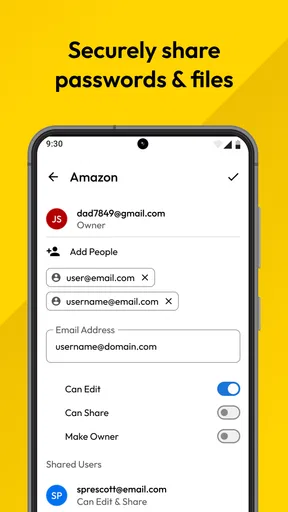
- Secure sharing with trusted contacts.
- Password generator for strong credentials.
Limitations of Keeper Password Manager
- Limited free version features.
- Premium plan can be costly.
- Occasional sync delays reported.
- No offline mode available.
- Learning curve for advanced features.
Similar Picks in This Category
View All
Google Calendar
Google LLC4.6

Google Drive
Google LLC4.3

Google Assistant
Google LLC3.9

Microsoft OneDrive
Microsoft Corporation4.6

Samsung Calendar
Samsung Electronics Co., Ltd.4.1

Microsoft OneNote: Save Notes
Microsoft Corporation4.6
Frequently Asked Questions
What platforms is Keeper Password Manager available on?
Keeper Password Manager is available on multiple platforms, including Android and iOS for mobile devices, as well as desktop versions for Windows and macOS. Additionally, there are browser extensions for Chrome, Firefox, Safari, and Edge, ensuring you can access your passwords securely from virtually any device.
How secure is Keeper Password Manager?
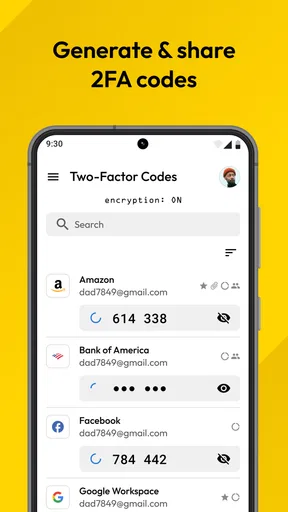
Keeper Password Manager uses zero-knowledge security architecture, meaning only you have access to your login credentials. It employs AES-256 bit encryption and PBKDF2 to protect your data. Additionally, it offers features like two-factor authentication (2FA) for extra security, ensuring peace of mind for its users.
Can Keeper Password Manager generate passwords for me?
Yes, Keeper Password Manager includes a built-in password generator. It can create strong, complex passwords that are difficult to crack, ensuring enhanced security for your online accounts. You can customize the length and complexity of these passwords to suit your needs, making it easier to maintain robust security practices.
Is there a free version of Keeper Password Manager?
Keeper offers a free trial period for new users, allowing them to explore its features before committing to a subscription. However, to continue using all functionalities after the trial, a subscription is necessary. Various plans are available, catering to individual, family, and business needs, each with different pricing options.
Does Keeper Password Manager support data import?
Yes, Keeper Password Manager supports importing data from various sources. You can easily transfer your existing passwords and login information from other password managers or spreadsheets. This feature streamlines the process of switching to Keeper, ensuring a hassle-free transition and maintaining organization of your credentials.
